
Manage Bot infrastructures
Important: Bot Defense self-service policy management is an early access feature.
The following sections provide information about how to view information about your current Bot infrastructure, including a list of clusters, configuration details and the status of each.
View your Bot infrastructures
To view a list of your Bot infrastructures, from the Bot and Risk Management navigation menu, select Manage > Bot & Risk Infrastructure. If necessary, use Search to find the Bot infrastructures you want to view.
The Bot Infrastructure page includes the following columns:
- Bot Infrastructure Name: The names of your Bot infrastructures.
- Infra Traffic: The type of traffic for which the infrastructure is configured (Web or Mobile).
- Region: The region where the Bot Defense infrastructure is deployed. Only applicable for the F5 Cloud Hosted infrastructure type.
- Device: Names of the individual virtual or physical machines that host your Bot Defense infrastructure. Only applicable for F5 Hosted and On-Premises infrastructure types.
- Endpoint Policy: The name and version number of the Bot Endpoint policy deployed in the infrastructure.
- Allowlist Policy: The name and version number of the Bot Allowlist policy deployed in the infrastructure.
- Network Policy: The name and version number of the Bot Network policy deployed in the infrastructure.
- Infra Type: Whether the infrastructure type is F5 Cloud Hosted, F5 Hosted or On-Premises.
- Environment Type: Whether this is a Production or Testing environment.
- Firmware Version: The firmware version deployed in your Bot infrastructure.
- Deployment Mode: The mode in which Bot Defense is deployed:
-
Reverse Proxy: Routes HTTP traffic to the Bot Defense infrastructure to be evaluated before it continues to the origin.
-
API: Bot Defense uses APIs to integrate with your third-party applications. Traffic isn't routed to the Bot Defense infrastructure.
Note: Configure table settings to customize the columns that display.
-
You can perform the following additional tasks from the Bot Infrastructure page:
- View Bot infrastructure configuration details.
- Show the status of your Bot infrastructure.
- Deploy updates to your bot policies.
- View your policy deployment history.
View configuration details
The following steps allow you to view configuration details for a specific Bot infrastructure.
-
From the Bot and Risk Management navigation menu, select Manage > Bot & Risk Infrastructure.
-
In the Actions column, select the Action menu (...) next to an infrastructure.
-
Select Manage Configuration to view the following information for the infrastructure you selected:
- Name: The name of the Bot infrastructure.
- Bot Endpoint Policy: The name, version number and traffic type (Web or Mobile) of the Bot Endpoint Policy deployed in the infrastructure.
- Bot Allowlist Policy: The name and version number of the Bot Allowlist Policy deployed in the infrastructure.
- Bot Network Policy: The name and version number of the Bot Network Policy deployed in the infrastructure.
- Infrastructure Type:
- Traffic Type: The type of traffic for which the infrastructure is configured (Web or Mobile).
- Cluster State: Whether the cluster is currently Active or Inactive.
- Infra Type: Whether this is a F5 Cloud Hosted, F5 Hosted or On-Premises infrastructure.
- Infra Host Name: The destination host name of a regional Bot Defense cluster for traffic sent to Bot Defense for evaluation.
- Firmware Version: The firmware version deployed in your Bot infrastructure.
- Devices: A list of virtual or physical machines that host your Bot Defense infrastructure, such as Bot Defense Service Nodes (SSEs). Only applicable for F5 Hosted and On-Premises infrastructure types.
- Device Name: Name of the individual virtual or physical machine that hosts your Bot Defense infrastructure.
- Firmware Version: Version number of the firmware currently installed on the device.
- IP Addresses: IP addresses for the network interfaces on your devices.
- Traffic: IP address of the network used for data service (web site traffic).
- WAN: IP address of the network used for the management service, F5 Distributed Cloud Protection Manager.
- Local: IP address of the network used for the F5 Distributed Cloud Bot Defense Service Node Configuration Manager.
- Certification Status: Expiration date of the SSL/TLS certificate on the device.
- Ingress: A list of destination host names or IP addresses for regional Bot Defense clusters for traffic evaluated by Bot Defense. Applicable to F5 Cloud Hosted only.
- Egress: A list of source IP addresses for the traffic that exits to your load balancer or CDN, or to the origin after being evaluated by Bot Defense. Applicable to F5 Cloud Hosted only.
- IP Addresses: A list of source IP addresses or ranges of source IP addresses compiled by your F5 team. This serves as the network access control list for ingress traffic entering the Bot Defense infrastructure. Applicable to F5 Cloud Hosted only.
-
To exit, select Close.
Show Bot infrastructure status
The following steps allow you to view the status of a Bot infrastructure.
-
From the Bot and Risk Management navigation menu, select Manage > Bot & Risk Infrastructure.
-
Select Refresh to retrieve the latest information about your Bot infrastructure.
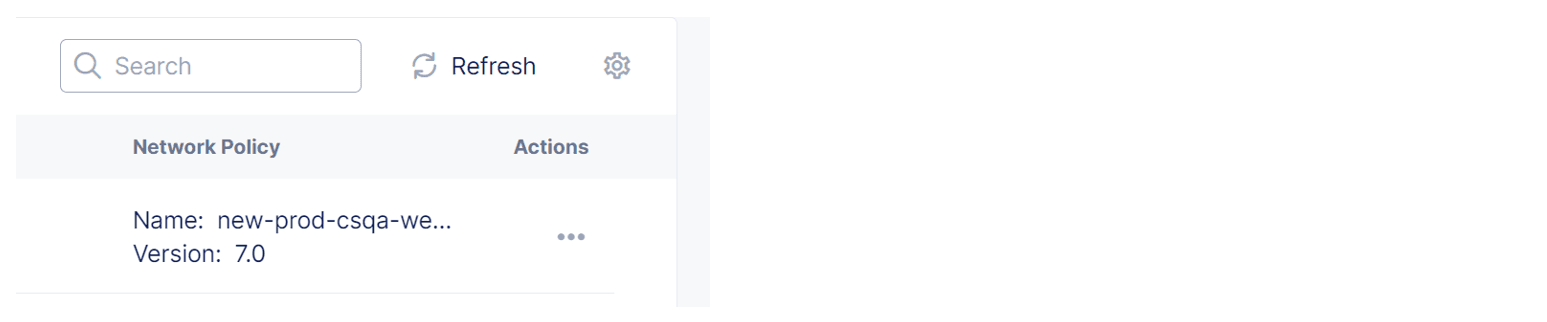
Figure: Refresh Status
-
In the Actions column, select the Action menu (...) next to an infrastructure.
-
Select Show Bot Infrastructure Status. The following information appears for each machine in the infrastructure you selected:
- Deployment Status: The status of the deployment process for your infrastructure. Either Success, In-Progress or Failed.
- Policies: The name and version number of each policy deployed on your infrastructure.
- Details: Additional information about the status of your infrastructure, such as errors or unusual events.
- Last Deployed By: Person or entity that last updated your infrastructure.
- Last Deployed On: Date that your infrastructure was last updated.
-
To exit, select anywhere outside of the Bot Infrastructure Status panel.
View policy and rule deployment status
The Deployment Status page provides detailed information about all Bot Defense policy, bot detection rule, and Device Intelligence rule deployments. To view the Deployment Status page, from the Bot and Risk Management navigation menu, select Manage > Bot & Risk Policies and then select Deployment Status.
The Bot Infrastructure Deployment Status section provides at-a-glance information for the previous 90 days. Mouse over the bar chart for information about how many deployments were successfully Deployed, how many Failed, and how many had Other statuses (In Progress, Partial, Discarded, or Unknown).
A list of all previous deployments displays the following information for each deployment:
- Date: The date of the deployment.
- Bot Infrastructure: The name of each infrastructure updated in the policy or rule deployment.
- Policies/Rule: The policies, bot detection rule or Device Intelligence rule updated in the deployment.
- Traffic Channel: The type of traffic (Web or Mobile) that the deployment impacted.
- Status: The current status of the deployment.
- In Progress: A user started the deployment but it hasn't completed.
- Deployed: The deployment was successful.
- Partial: Only some of your changes were successful. For information about which changes were successful and which failed, in the Actions column for a specific deployment, select the Action menu (...) and then select Deployment Details. The Deployment Details panel provides status information about each infrastructure, policy, bot detection rule, and Device Intelligence rule included in the deployment. For information, see Deployment Details.
- Failed: The deployment failed to deploy.
- Discarded: A user discarded a rule deployment. The rule deployment can no longer be deployed.
- Unknown: A connectivity or other issue prevented Bot Defense from obtaining the deployment status.
- Modified By: Person or entity that initiated the deployment.
- Note: Mouse over the note icon to view any notes left by the person that deployed the policy or rule.
Deployment Details
A Deployment Details panel displays information about which infrastructure, policy, bot detection rule and Device Intelligence rule changes in a deployment were successful and which failed.
In the Actions column for a specific deployment, select the Action menu (...) and then select Deployment Details. The Deployment Details panel provides the following information about the overall deployment:
- Deployment date: The date of the deployment.
- Deployed To: The type of infrastructure to which the policies or rules were deployed. (PROD or TEST)
- Deployed By: Person or entity that initiated the deployment.
- Deployment Status: The current status of the deployment.
The panel also includes the following information about each infrastructure included in the deployment:
- Name: The name of the infrastructure.
- Environment: The type of infrastructure (PROD or TEST)
- Region: The region where the infrastructure is deployed.
- Infra Type: The type of infrastructure, such as F5-Cloud-Hosted.
For bot detection rule and Device Intelligence rule changes, the Deployment Details panel includes information about each rule as well as the rule state prior to the deployment and the rule state after the deployment.
View policy deployment history
Bot Defense Deployment History enables you to easily track policy updates for your Bot infrastructures. Use the filters at the top of the history list to sort by who deployed the policy, the policy type and the time period for which results are displayed.
- From the Bot and Risk Management navigation menu, select Manage > Bot & Risk Infrastructure.
- In the Actions column, select the Action menu (...) next to an infrastructure.
- Select View Deployment History to view the date and time of each deployment update and whether the update was deployed by F5 or by one of your users.
- Select a deployment update to view the name and version of each policy type (Endpoint Policy, Network Policy or Allowlist Policy) deployed in that update.
- To exit, select anywhere outside of the Deployment History panel.
Clone a Bot Defense infrastructure
If you have an existing Bot Defense infrastructure, you can clone that infrastructure and the associated policies to create a new infrastructure with similar settings and policies. For example, if you have a Test infrastructure with configured policies that you want to replicate in Production, you can clone your Test infrastructure and quickly create the Production infrastructure with minimal additional configuration.
-
From the Bot and Risk Management navigation menu, select Manage > Bot & Risk Infrastructure.
-
In the Actions column, select the Action menu (…) next to an infrastructure.
-
Select Clone Configuration.
-
Enter a Name for the new infrastructure.
-
From the Environment Type drop-down menu, select one of the following options:
-
Production: Select this to add an infrastructure to protect your live production applications and services from automated attacks.
From the Redundancy Mode drop-down menu, select one of the following options:
- Active-Active: Two active infrastructure regions in which traffic is routed equally between the two regions. Use the Active drop-down menus to select the regions where you want to locate your infrastructures.
- Active-Passive: One active infrastructure that fails over to the passive infrastructure when health checks fail. Use the Active and Passive drop-down menus to select where you want to locate your active and passive infrastructures.
- Single Active: All traffic is routed to a single infrastructure. Use the Active drop-down menu to select where you want to locate your infrastructure.
-
Test: Select this to add an infrastructure to evaluate new features, settings, and system performance. A Test infrastructure has a Single Active infrastructure region that processes all traffic.
Use the Active drop-down menu to select where you want to locate your infrastructure.
-
-
If necessary, add entries to the Access Control List:
- To add allowed host names, in the Access Control List - Host Names section, select Add, and enter a host name. To add additional host names, select Add again.
- To add allowed IP addresses, in the Access Control List - IP Addresses section, select Add, and enter an IP address in CIDR notation. To add additional IP addresses, select Add again.
Only traffic from these IP addresses or hostnames is allowed to access your Bot Defense infrastructure.
-
Select Add Bot Infrastructure.
After you save your new infrastructure, it takes a few minutes for Bot Defense to finish creating the infrastructure and default Bot Defense policies. Select Refresh on the Bot Infrastructure page to see the latest list of Bot Defense infrastructures.
Next Steps:
After you configure your Bot Defense infrastructure, review the Bot Defense policies to make sure there are no changes you want to make.
For information about configuring Bot Defense Policies, see Get started with Bot Defense - Configure your Bot policies.
Add allowed host names to a Bot Defense infrastructure access control list
You can add allowed host names to your Bot Defense infrastructure access control list. Traffic from machines with these host names are allowed to access the Bot Defense infrastructure.
- From the Bot and Risk Management navigation menu, select Manage > Bot & Risk Infrastructure.
- In the Actions column, select the Action menu (...) next to an infrastructure.
- Select Manage Configuration, and then select Edit Configuration.
- In the Allowed Host Names list section, select Add, and add a valid host name.
- Select Save Bot Infrastructure.
Add allowed IP addresses to a Bot Defense infrastructure access control list
You can add allowed IP addresses to your Bot Defense infrastructure access control list. Traffic from machines with these IP addresses are allowed to access the Bot Defense infrastructure.
- From the Bot and Risk Management navigation menu, select Manage > Bot & Risk Infrastructure.
- In the Actions column, select the Action menu (...) next to an infrastructure.
- Select Manage Configuration, and then select Edit Configuration.
- In the Ingress IP Access Control List section, select Add, and add a valid IP address in CIDR notation.
- Select Save Bot Infrastructure.
On this page:
- View your Bot infrastructures
- View configuration details
- Show Bot infrastructure status
- View policy and rule deployment status
- Deployment Details
- View policy deployment history
- Clone a Bot Defense infrastructure
- Add allowed host names to a Bot Defense infrastructure access control list
- Add allowed IP addresses to a Bot Defense infrastructure access control list